So now, here comes Windows Home Server, a work group server for a network of 10 computers or less. I've been beta testing it, reading what others are saying about it, and talking to colleagues who are working with it. The early returns are a lot better than I expected. Windows Home Server is trying to solve three problems:
1. Backups
2. File sharing
3. Remote access to files
Shawn MortonIn order to figure out just how well it accomplishes these tasks, I consulted my colleague Shawn Morton (right), the TechRepublic site manager, because Shawn is the most proficient consumer electronics dude that I know, and he has been testing Windows Home Server with live data. Shawn has a serious home network setup with a variety of PCs, an XP Media Center PC, an Xbox 360, Nintendo Wii, and a ton of other stuff that I won't mention, otherwise you'll end up drooling like me.
Installation
"It's super easy to set up," Shawn said. He installed it on an unused PC that he equipped with several removable drive bays so that he could add more storage in the future.
He noted that it definitely felt like a beta install since there were odd Windows Server 2003 screens that popped up and the computer restarted itself 4-5 times in the process. It took about an hour to install, with the setup handling all of the partitioning and other basic steps that are part of a normal Windows installation.
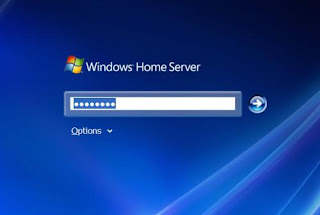
File sharing and Backups
"It creates the shares for you," Shawn said, "and it's easy to point non-technical users to them." It is easy because Windows Home Server uses standard names such as "Music" and "Photos" and "Software" for the network file shares, so you don't have to remember any special character strings or drive letters.
Next, Shawn tried out the backups. "The whole automatic backup thing is really cool," he said. "It backs up your whole PC for you. I think most people don't backup, and they worry about the fact that they don't back up."
Shawn ran some backups and the process went smoothly. When I spoke with him, he was still getting ready to test the recovery of one of the backups using his son's PC.
Remote access
One thing that Shawn really liked was the remote access feature, which can be turned on to make the server accessible over the Internet via Microsoft's livenode.com domain.
"Being able to log into your server from anywhere on the Internet is great," Shawn remarked.
Full info here: http://blogs.techrepublic.com.com/hiner/?p=448
1. Backups
2. File sharing
3. Remote access to files
Shawn MortonIn order to figure out just how well it accomplishes these tasks, I consulted my colleague Shawn Morton (right), the TechRepublic site manager, because Shawn is the most proficient consumer electronics dude that I know, and he has been testing Windows Home Server with live data. Shawn has a serious home network setup with a variety of PCs, an XP Media Center PC, an Xbox 360, Nintendo Wii, and a ton of other stuff that I won't mention, otherwise you'll end up drooling like me.
Installation
"It's super easy to set up," Shawn said. He installed it on an unused PC that he equipped with several removable drive bays so that he could add more storage in the future.
He noted that it definitely felt like a beta install since there were odd Windows Server 2003 screens that popped up and the computer restarted itself 4-5 times in the process. It took about an hour to install, with the setup handling all of the partitioning and other basic steps that are part of a normal Windows installation.

File sharing and Backups
"It creates the shares for you," Shawn said, "and it's easy to point non-technical users to them." It is easy because Windows Home Server uses standard names such as "Music" and "Photos" and "Software" for the network file shares, so you don't have to remember any special character strings or drive letters.
Next, Shawn tried out the backups. "The whole automatic backup thing is really cool," he said. "It backs up your whole PC for you. I think most people don't backup, and they worry about the fact that they don't back up."
Shawn ran some backups and the process went smoothly. When I spoke with him, he was still getting ready to test the recovery of one of the backups using his son's PC.
Remote access
One thing that Shawn really liked was the remote access feature, which can be turned on to make the server accessible over the Internet via Microsoft's livenode.com domain.
"Being able to log into your server from anywhere on the Internet is great," Shawn remarked.
Full info here: http://blogs.techrepublic.com.com/hiner/?p=448


